getting started
prerequisites
- Android Studio Meerkat (2024.3) or later
- Android SDK 36
- device or emulator running Android 7.0+ (minSdk 24)
build from source
bash
git clone https://github.com/dukex/will.git
cd will
./gradlew assembleDebug
./gradlew installDebug
first launch
Will opens with a guided onboarding the first time you launch it. the flow has three steps:
- set Will as the default launcher — uses Android's role manager on Android 10+, falls back to the home-app picker on older releases.
- grant the overlay permission — required for the floating active-task bubble.
- grant the notification listener — optional. Will still works as a launcher without it; you just lose the auto-task pipeline.
each step opens the relevant system page. when you come back, Will detects the new grant and advances. you can replay the flow any time from settings → re-run onboarding.
if you skip onboarding entirely (e.g. installing through ADB), the rest of this section walks through the same setup manually.
set as default launcher (manual)
- install the APK
- press home
- select Will from the launcher picker
- mark Will as default when prompted
permissions (manual)
Will is useless without the notification listener — every other permission is optional and unlocks one specific feature.
| permission | required for | how to grant |
|---|---|---|
| BIND_NOTIFICATION_LISTENER_SERVICE | capturing notifications as tasks | Settings → Apps → Special app access → Notification access → Will |
| SYSTEM_ALERT_WINDOW | active task overlay (floating bubble) | Settings → Apps → Special app access → Display over other apps → Will |
| RECEIVE_BOOT_COMPLETED | restore overlay on reboot | granted at install time |
if the listener permission is missing, Will shows a small banner at the bottom of the home screen with a one-tap shortcut to the system page.
first-run walkthrough
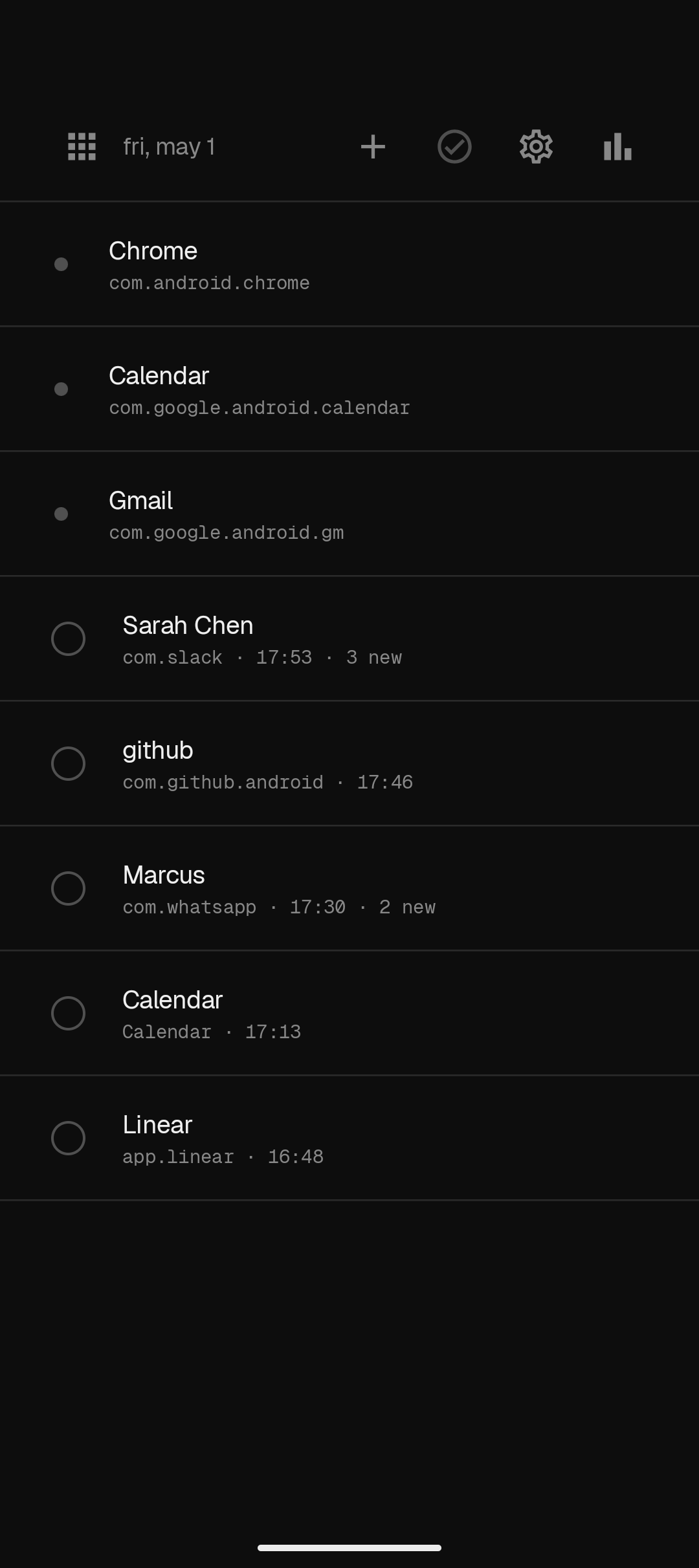
once Will is the default launcher and the notification listener is granted:
- task feed — the home screen is the feed itself. notifications arrive as task cards. tap a card to open the source conversation. tap the checkbox to mark it done.
- pinned apps — long-press an app in the drawer to pin or unpin. up to 5 apps live at the top of the feed and scroll with it.
- app drawer — tap the apps button in the top bar, or swipe up from the feed.
- manual intent — tap the input field above the feed to type a task that did not come from a notification.
- filter sources — open settings from the top bar to silence apps whose notifications should not become tasks.
- focus dashboard — open from the top bar to see today's focus score, time-on-task, and context switches.
- done list — completed tasks live on a separate screen, reachable from the top bar. you can reopen or delete them from there.